Projecta
Projecta helps to explore data and medical images: load a file, a table or an exam, and the application summarizes it, shows it in 2D and 3D, measures it.
Download for Windows The online dashboard The desktop app
- Load data: a file (CSV, Excel, Parquet…), a table of a database, a web link, S3 or SFTP.
- Explore and export: the overview, the columns, the export.
- Visualize: PCA, t-SNE or UMAP projections in 2D and 3D, empty cells filled.
- Medical imaging: DICOM, NIfTI or PACS; three planes, measurements, follow-up, report.
- Assistant: answers and proposals about the open screen; you decide.
- Workspaces: your datasets, your settings, your history, per project.
The screen
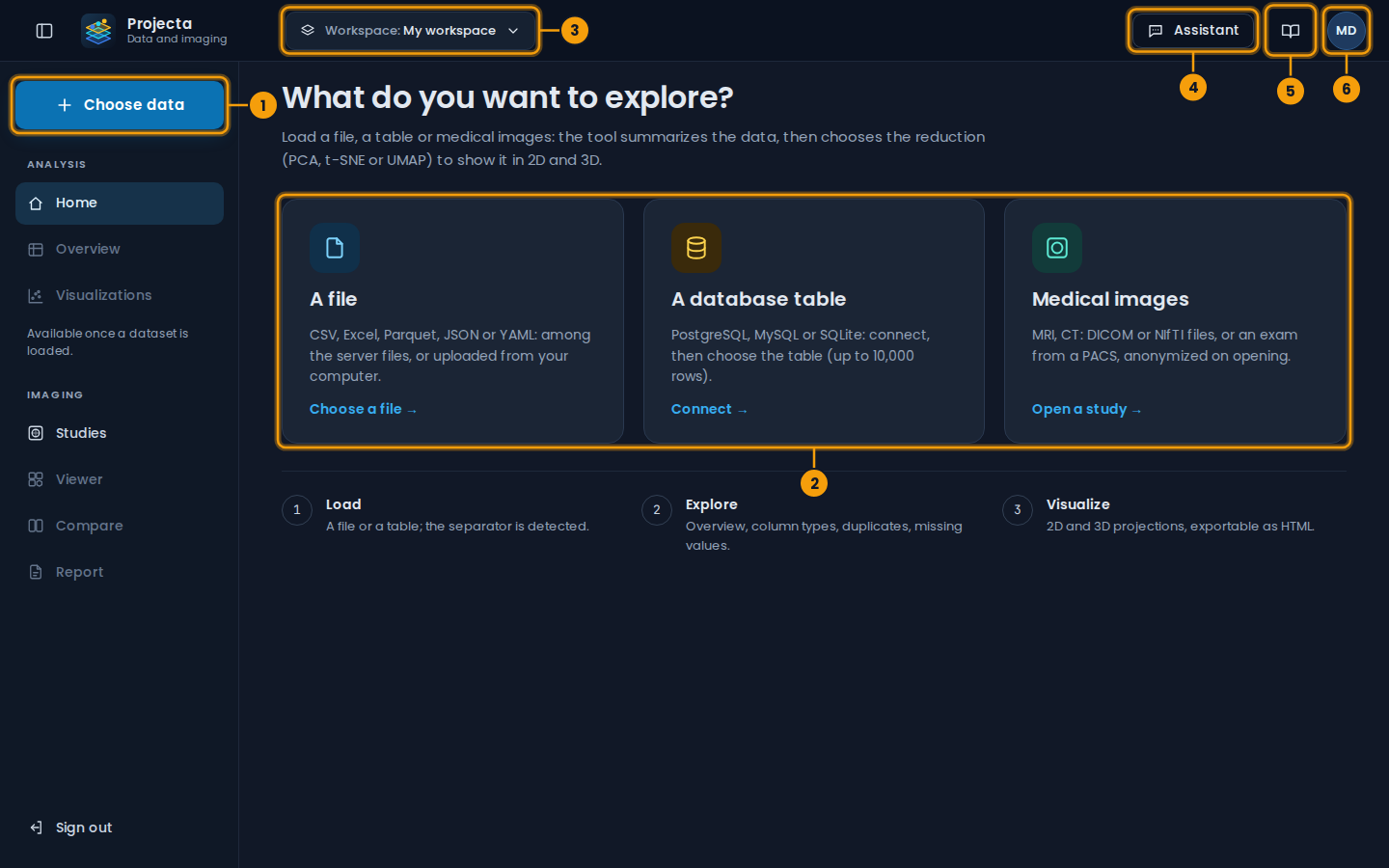
- Choose data: a file, a table, a remote server.
- Three ways to start: a file, a database table, medical images.
- The open workspace; a click shows the others.
- Assistant: the panel of questions and proposals.
- This guide (the book).
- Your account: profile, language, settings, notifications, what’s new.
| Area | Content |
|---|---|
| Top bar | side menu, workspace, Assistant, this guide, account |
| Side menu | Choose data; ANALYSIS: Home, Overview (and Columns), Visualizations; IMAGING: Studies, Viewer, Compare, Report; recent datasets |
| Centre | the chosen screen |
| Right panel | the assistant, when open |
The side menu is hidden: the page takes all the room. The pointer on the button left of the logo shows it over the page, without moving it, as long as it stays on the button or the menu (as in the Claude application). A click on this button keeps it open, another hides it; the choice is kept in the browser.
On a tablet and a phone
The online dashboard also opens on a tablet: everything is there, the menu hidden (the button top left shows it), buttons the size of a finger, the table scrolling in its card. On a phone, it is for looking: a bar at the bottom (Home, Overview, Studies, Assistant), your recent datasets and studies, the overview and its visualization in two tabs, one view at a time, and the viewer plane by plane (Axial, Coronal, Sagittal, 3D). Loading a file, connecting to a database, segmenting or writing a report are done on a computer or a tablet. A shared study also opens on a phone.
The sign-in pages follow: on a tablet in landscape, Projecta on the left and the form on the right; on a phone, one column, and creating an account starts with Google and GitHub. The fields keep their name above them, Google and GitHub show theirs.
To start
- Create your account and sign in.
- Choose data: a file of your computer, or a file of the server.
- Generate the visualizations from the overview.
A problem: see Help. What changes in each version: What’s new.