Load data
Choose data (side menu or home) opens a window with three tabs: Files, Database, Remote server.
A file
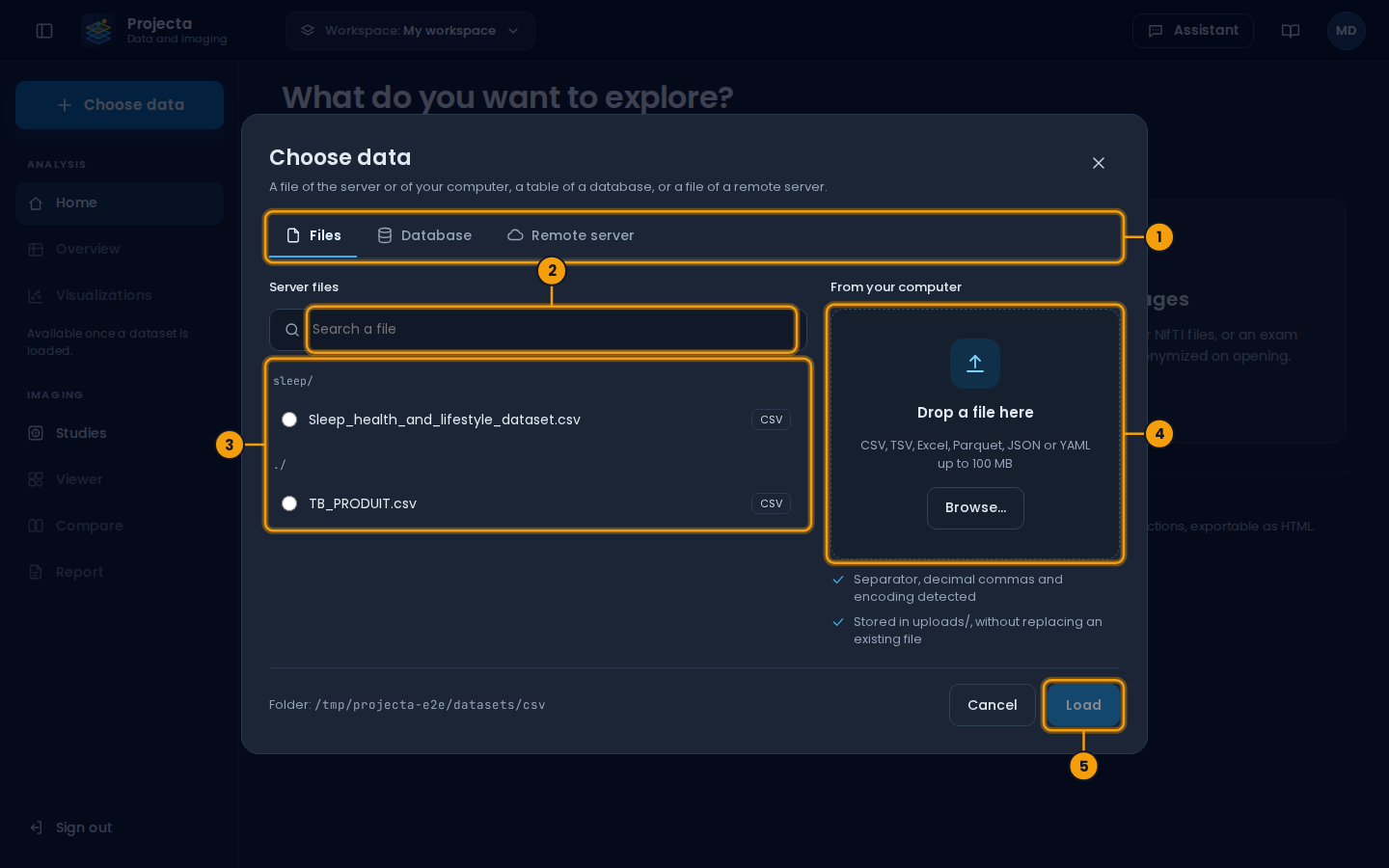
- The three tabs: Files, Database, Remote server.
- Search a file by its name.
- The files of the server, by folder.
- Drop a file of your computer (or Browse…).
- Load the chosen file.
| Source | How |
|---|---|
| Server files | sorted by folder; the search filters by name; choose a file, then Load (or double-click) |
| From the computer | drop a file in the frame, or Browse…; it is stored in uploads/ without replacing an existing file, then opens |
Formats: CSV, TSV, Excel (.xls, .xlsx), Parquet, JSON and YAML, up to
100 MB. The separator, decimal commas (49,9) and the encoding are
detected.
Each file is checked before it is kept: a file whose content does not
match its extension (a program renamed .csv), an Excel workbook with
macros, or a file made to overload the server is refused, with the
reason.
A database table
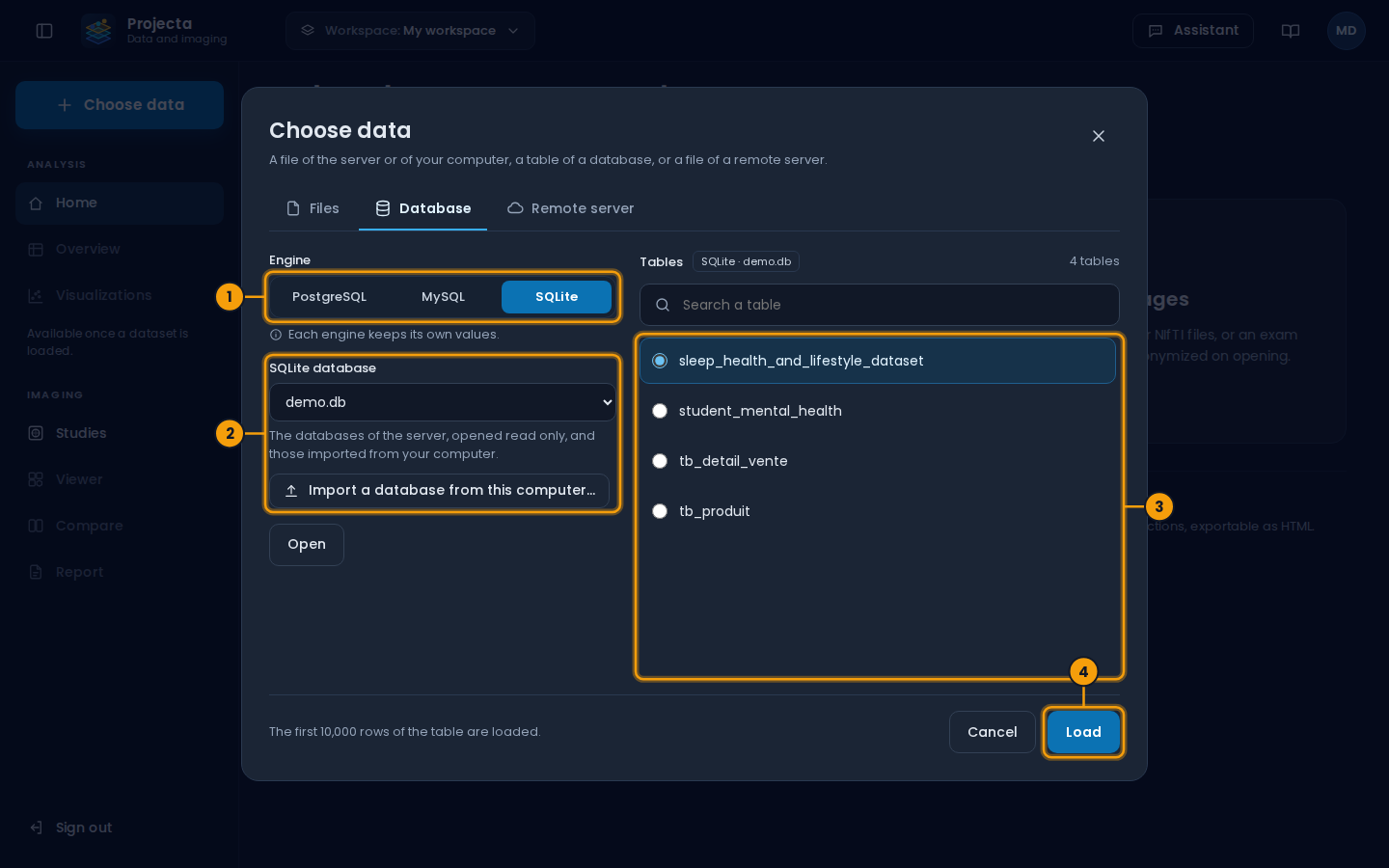
- The engine: PostgreSQL, MySQL or SQLite.
- The database (for SQLite) or the server, database, user and password (for PostgreSQL and MySQL); here, also import a database from the computer.
- The tables of the database: choose one.
-
Load its first rows.
-
Database tab (or the “A database table” card of the home page).
- Choose the engine: PostgreSQL, MySQL or SQLite.
- PostgreSQL and MySQL: server, port, database, user, password (and
schema for PostgreSQL), then Connect. SQLite: choose a database of
the server, or Import a database from this computer… (a
.db,.sqliteor.sqlite3file, up to 200 MB), then Open. - The tables show on the right; the search filters by name. Choose a table, then Load (or double-click): its first 10,000 rows are loaded.
The password is never saved: it stays in memory for the session. The other settings of a connection that worked fill the form the next time.
Each engine keeps its own values: going from PostgreSQL to MySQL shows the MySQL fields (empty the first time, with its port 3306), and going back to PostgreSQL finds what was typed for it.
If the connection fails, the reason shows instead of the tables (server unreachable, password refused…).
Your own databases: the PostgreSQL or MySQL server is given by its
address, as the server of Projecta reaches it. Projecta online does not
see the databases of your computer: only those open on the Internet. With
a Projecta server on your computer, its own is called localhost. An SQLite database of your computer is imported (see above): it
is copied to the server and stays in the list.
Tables to try
On a test server, the administrator can load sample data in the three
databases: database app, schema public for PostgreSQL; app.db for
SQLite.
A file from a remote server
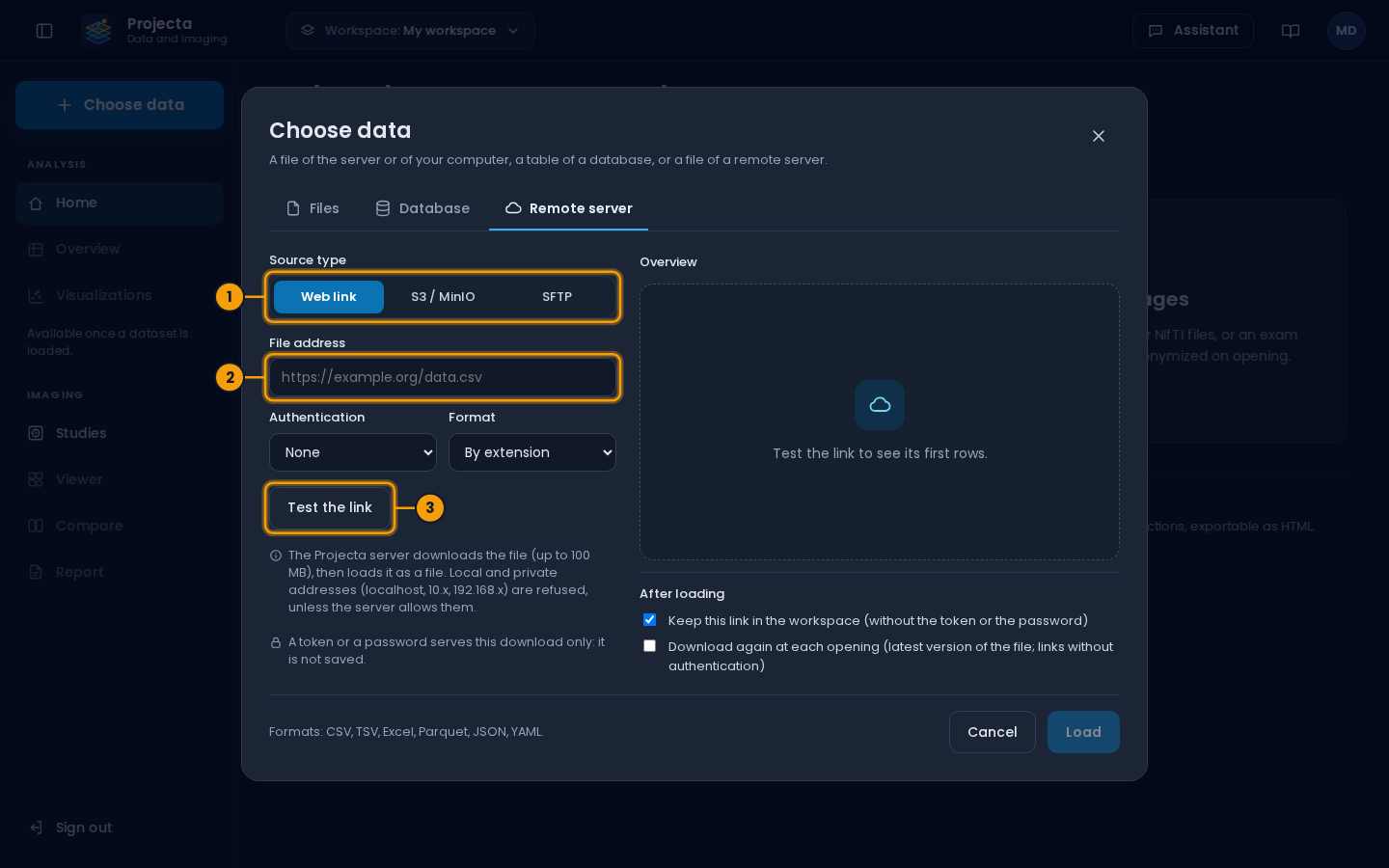
- The source type: web link, S3 / MinIO or SFTP.
- The address of the file (or of the server).
- Test the link (or Connect, for S3 and SFTP).
Remote server tab, three source types:
| Source | Settings | Then |
|---|---|---|
| Web link | http(s)://… address of the file; authentication: none, token (Bearer), user and password, or custom header (X-API-Key…); format, if the address has no extension |
Test the link shows the size and the first 5 rows, then Load |
| S3 / MinIO | endpoint (https://minio.lab.local:9000, s3.amazonaws.com), region, bucket, access key and secret key |
Connect, browse the folders, choose a file, Load |
| SFTP | server, port (22), user, password or private key (OpenSSH or PEM file, with its passphrase) | the same |
The Projecta server downloads the file (up to 100 MB) into
uploads/remote/, checks it as an uploaded file, then opens it.
GitHub, Google Drive, Google Sheets, Dropbox
Paste the link as you copy it: Projecta turns it into a download link.
- GitHub (page of a file,
…/blob/main/data.csv): public repository, no authentication; private repository, authentication Token with a GitHub fine-grained token limited to this repository, permission Contents: Read-only (GitHub › Settings › Developer settings). - Google Drive (share link of a file): the file must be shared with "Anyone with the link".
- Google Sheets: the open sheet is read as CSV (same sharing rule).
- Dropbox: the share link.
- Secrets: token, passwords, secret key and private key serve the current request, never saved. The other settings are kept in the workspace and fill the form the next time; kept links are offered under the address.
- Download again at each opening: a link without authentication opened from the recent datasets is downloaded again (latest version, same file). If it does not answer, the version already downloaded opens.
- SFTP: on the first connection, the fingerprint of the server
(
SHA256:…) is kept; if the server shows another one later, the connection is refused (likessh).
Refused addresses
For safety, Projecta does not download from its own machine
(localhost), nor, by default, from a private network (10.x,
192.168.x…). For a server of your laboratory’s network, ask the
administrator to allow it.