Explore and export
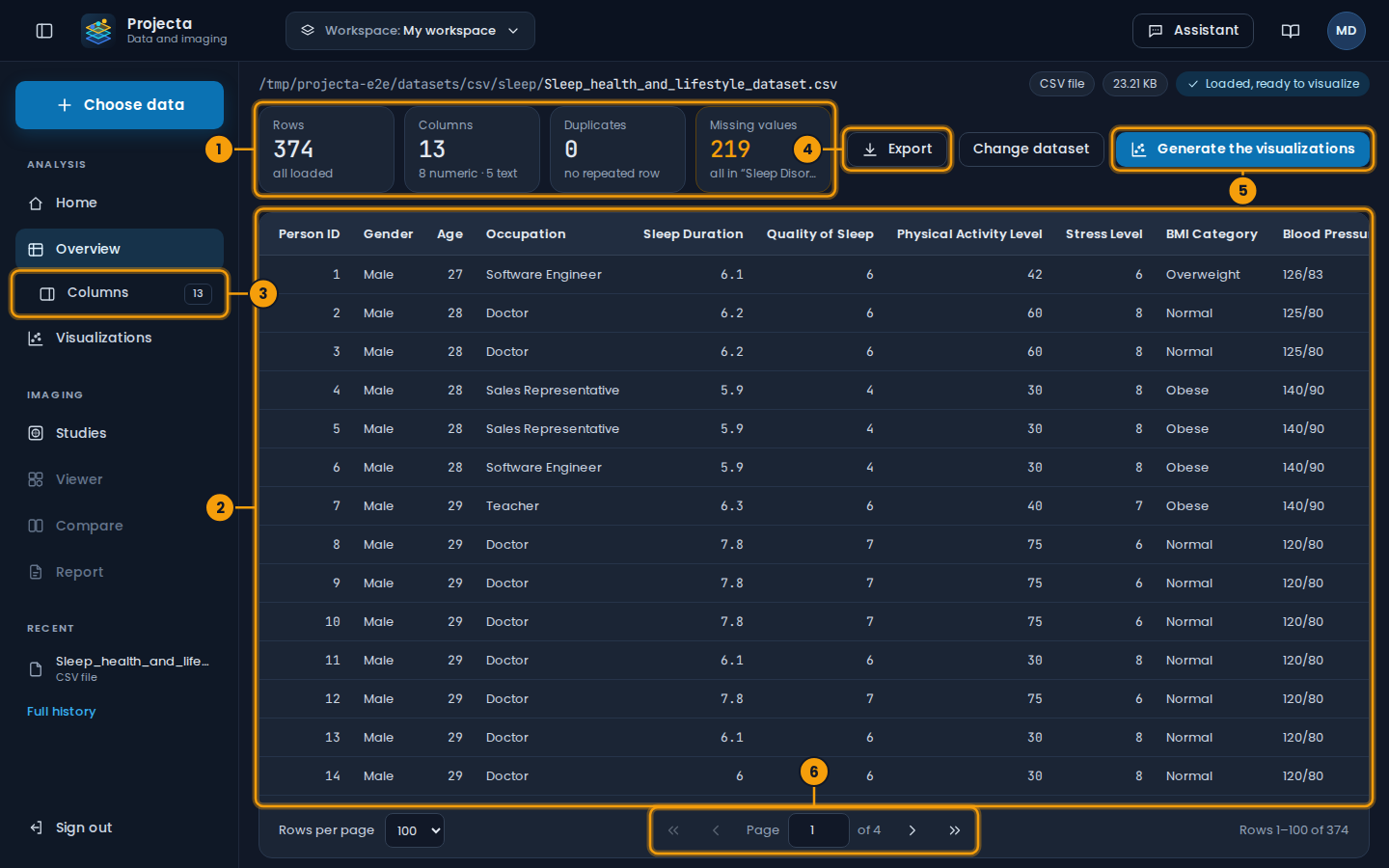
- Four figures: rows, columns, duplicates, missing values.
- The table, page by page.
- Columns: the type and the missing values of each.
- Export to a file or a database.
- Generate the visualizations.
- The pages of the table.
| Element | Role |
|---|---|
| Title | full path of the dataset: folder, then file name (or engine and database, for a table) |
| Chips | format, size, loading state: at the end of the path, or under it when it fills the line |
| Four figures | rows, columns (numeric and text), duplicates, missing values |
| Export, Change dataset, Generate the visualizations | on the line of the figures, on the right |
| Table | all the rows, page by page |
| Under the table | rows per page (50, 100 or 200) on the left, pages in the centre (or a number to type), rows shown on the right |
| Columns (side menu, under Overview) | opens or closes the columns panel: type (number or text) and missing values of each |
Empty cells are written empty. Numbers are aligned right.
Export
Export (overview) writes the dataset on screen, with the loaded rows (a table: its first 10,000 rows), in another format or another database.
To a file: choose the format (CSV, TSV, Excel, Parquet, JSON or YAML), the file name and, for CSV, the separator (comma or semicolon). Then:
- Download to this computer;
- or Save on the server, in
uploads/: the file then appears in “Choose data”; a name already taken gets “-1”.
To a database: choose the engine and the connection (filled with the
last one of the workspace for each engine), the table name and what to do
if it already exists: overwrite nothing (the export stops and says
so), replace the table or append the rows. The “Columns created”
table shows the name and the SQL type each column will get: lower case,
no accents, _ instead of spaces. For SQLite, choose a database of the
SQLite folder of the server, or New database… and its name
(export.db).