Workspaces and history
The Workspace: … button of the top bar opens the list of workspaces.
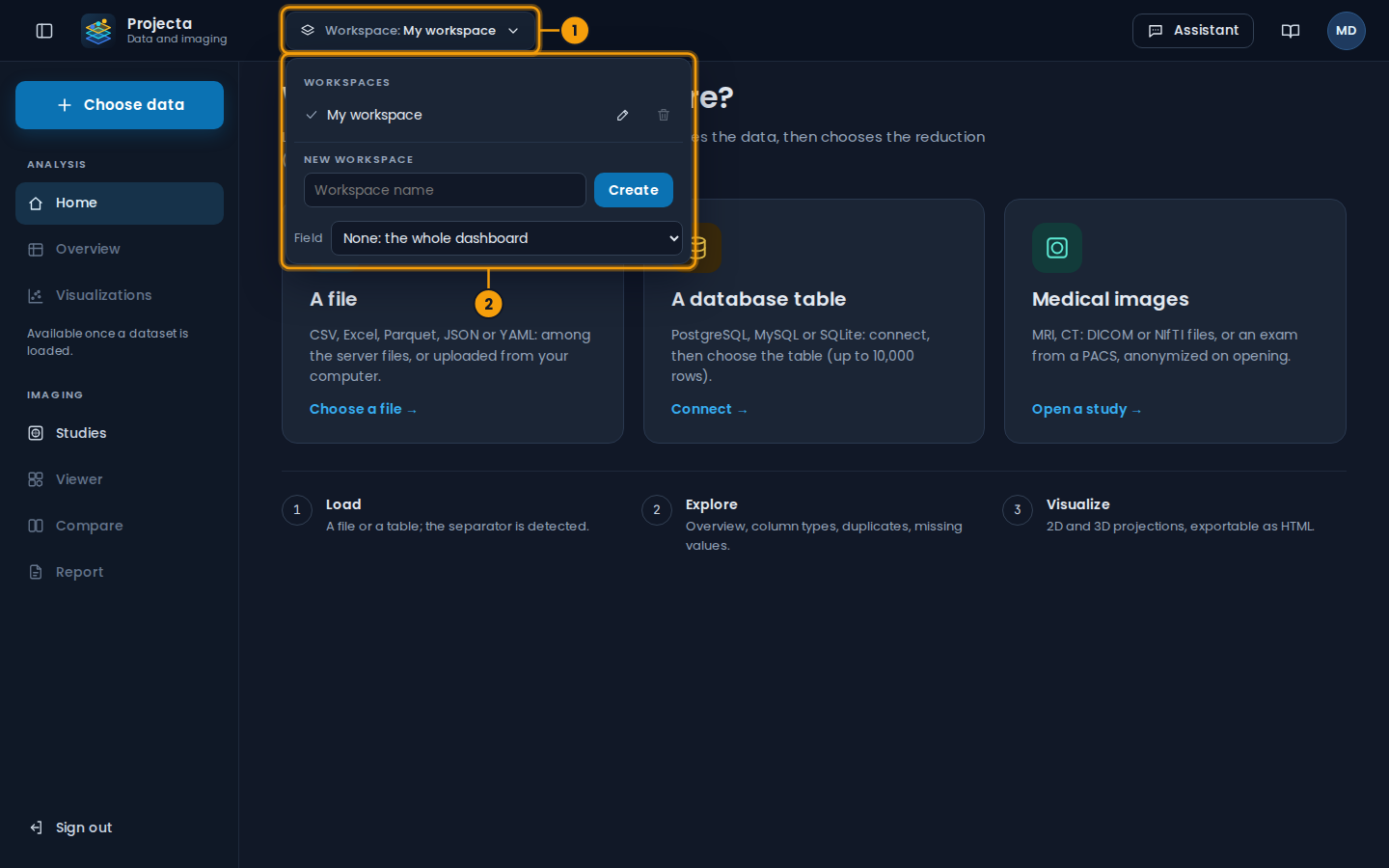
- The open workspace.
- The list: switch workspace, rename it, delete it; create one.
| Action | How |
|---|---|
| Switch workspace | click its name: the dataset it was working on opens again |
| Create | “New workspace”, a name, its field, Create |
| Rename | pencil |
| Delete | bin, then confirmation; the last workspace cannot be deleted |
Each workspace keeps its dataset on screen, its recent datasets, its connections, its choice of columns and its way of filling empty cells. Deleting a workspace deletes its history, not the files nor the visualizations.
The field of a workspace
Each workspace has its field: there, the dashboard puts first what you use most. At first launch, Projecta asks it with cards; Skip keeps the whole dashboard as it is.
| Field | What changes |
|---|---|
| Medical imaging | the IMAGING menu at the top, Open a study as the main button, the home page starts with the studies |
| Clinical research | the home page starts with the files (a cohort), then the tables |
| Public health | the home page starts with the database tables |
| Data analysis | the files and the tables, without imaging (menu and card hidden) |
The assistant knows the field of the workspace and suggests, on the home page, questions that suit it. Another field: Account › Settings › Field of the workspace, or one workspace per field (“New workspace”). Nothing is removed: another field puts everything back in its place.
Recent datasets and history
- The side menu shows the last 5 datasets of the workspace, the home page the last 3: a click opens them again.
- Full history lists the last 10. The cross of a row removes it from the history (the file stays); Clear the history removes them all, after confirmation.