Visualize
Generate the visualizations reduces the numeric columns to two or three components and draws them.
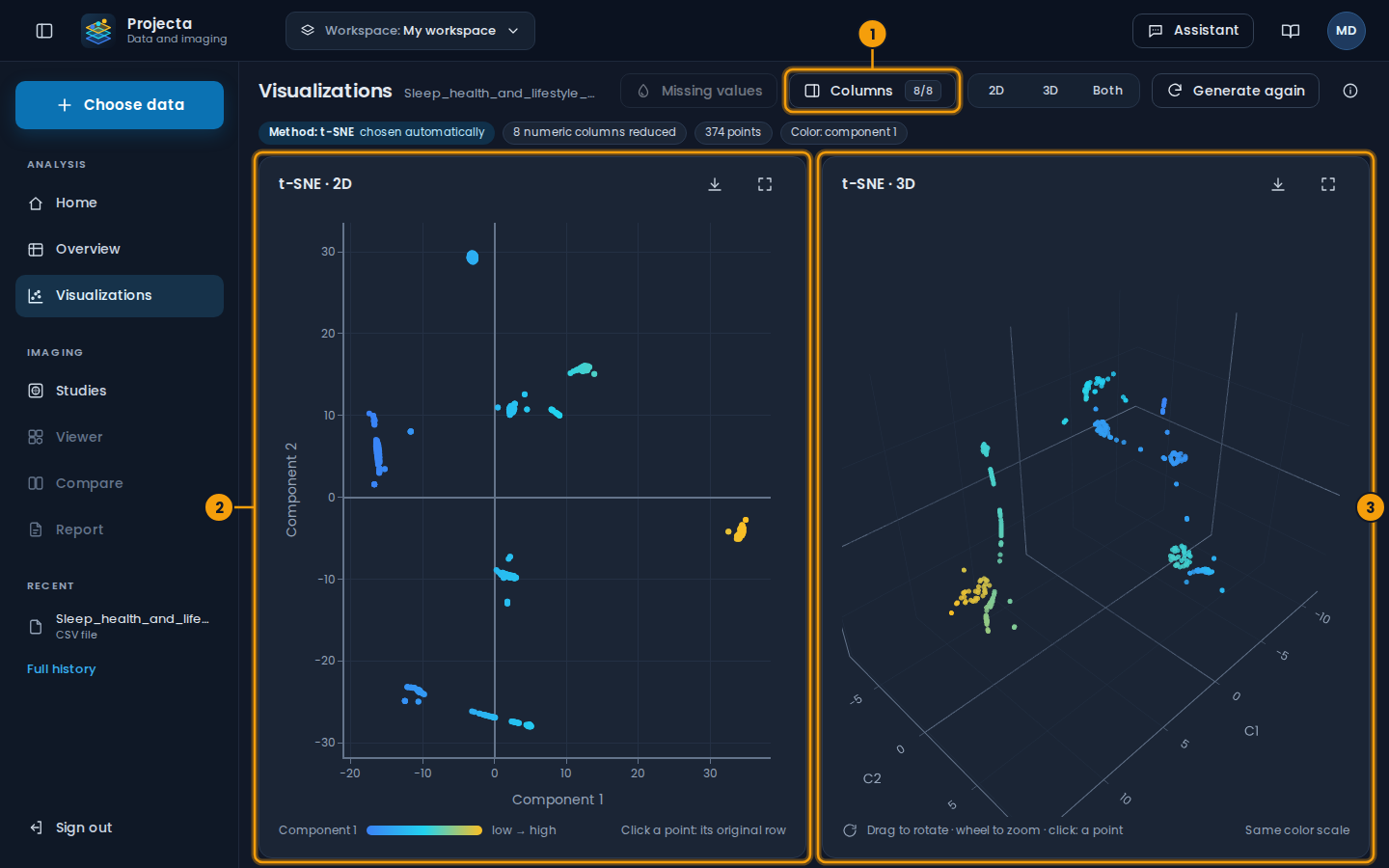
- Columns: those projected (here 8 of 8).
- The 2D view: clicking a point shows its original row.
- The 3D view: drag to rotate it, wheel to zoom.
Empty cells
If cells of the numeric columns to reduce are empty, a window first asks how to fill them, column by column:
| Choice | The empty cells get |
|---|---|
| Leave empty (default) | nothing: incomplete rows are not drawn |
| Mean, Median | the mean or the median of the other cells of the column |
| Zero, Fixed value… | 0, or the value typed |
“For all the columns” applies a choice to each one; the bottom of the window says how many rows will be drawn. Leave all by default generates without filling anything. The dataset itself is never changed.
With Keep these choices ticked, they are kept in the workspace for this dataset: the question is not asked again, and the Missing values button of the visualizations changes them (the views are then generated again). Opening another dataset starts from the default settings.
View settings
- Method: chosen automatically (PCA, t-SNE or UMAP) from the size of the dataset and the correlations; the chip shows it.
- Columns: choose the numeric columns to reduce (all by default; at least 2, 3 for 3D), then Apply. The choice is kept in the workspace.
- Missing values: change how the empty cells are filled (greyed out if the reduced columns have none).
- 2D / 3D / Both: the views shown.
- Click a point: the values of its original row, in a small box (one at a time; Escape or × closes it). Nothing shows on hover.
- 3D: drag to rotate, wheel to zoom.
- Export (down arrow): the view as HTML (interactive), PNG, SVG (vector), PDF (one page), JPEG or WebP. The images are drawn by the browser, on the background of the dashboard: with or without Docker, and in the desktop application. A message says where the file is: in a browser, its downloads folder (Ctrl+J shows it); in the desktop application, the full path in Downloads\Projecta (a click on it opens the file), with Open the folder.
- Enlarge (four corners): the view in full screen; Shrink, top right, or the Esc key brings it back.
- Generate again: compute again after a change.
Beyond 5,000 rows, 5,000 random points are shown. A dataset with fewer than two numeric columns cannot be visualized.